 fast
Install the fastRSS server on a Synology NAS
The fastRSS server is fastRSS without a window: feeds, link grabber and download manager run on your NAS around the clock, and you use them in the browser - from any device in your network. It comes as a Docker image for Intel/AMD and ARM processors (64-bit).
What you need
- A Synology NAS with DSM 7.2 or later and the package Container Manager from the Package Center. Models that do not offer Container Manager cannot run Docker images.
- The image: fastrss/fastrss on Docker Hub. It is tested on DSM 7.2 (ARM) and DSM 7.4 (Intel).
Step by step
- Install Container Manager. Open the Package Center, search for “Container Manager” and install it. This also creates the shared folder
docker. - Create the folders. In File Station, create the folder
fastrssinsidedocker, and in it the two foldersdataanddownloads. Both must exist before the first start - they are not created automatically. - Create the project. In Container Manager go to Project → Create. Project name:
fastrss, path:/docker/fastrss, source: Create docker-compose.yml. Paste this text:services: fastrss: image: fastrss/fastrss:latest container_name: fastrss restart: unless-stopped ports: - "8088:8080" environment: TZ: Europe/Berlin FASTRSS_LANG: en volumes: - ./data:/data - ./downloads:/downloads8088is the port on your NAS - take another one if it is in use. Leave8080as it is.TZis your time zone,FASTRSS_LANGthe language at the very first start (you can change it later in the settings).- Should the downloads go to another shared folder? Replace
./downloads, for example with/volume1/Downloads.
- Start. Click Next (skip the web portal settings) and then Done. Container Manager downloads the image and starts the container - the first time this takes a minute or two.
- Open fastRSS. In your browser go to
http://NAS:8088- instead of NAS, the name or the address of your NAS - and choose a password (at least 8 characters). That is all: add your first feed.
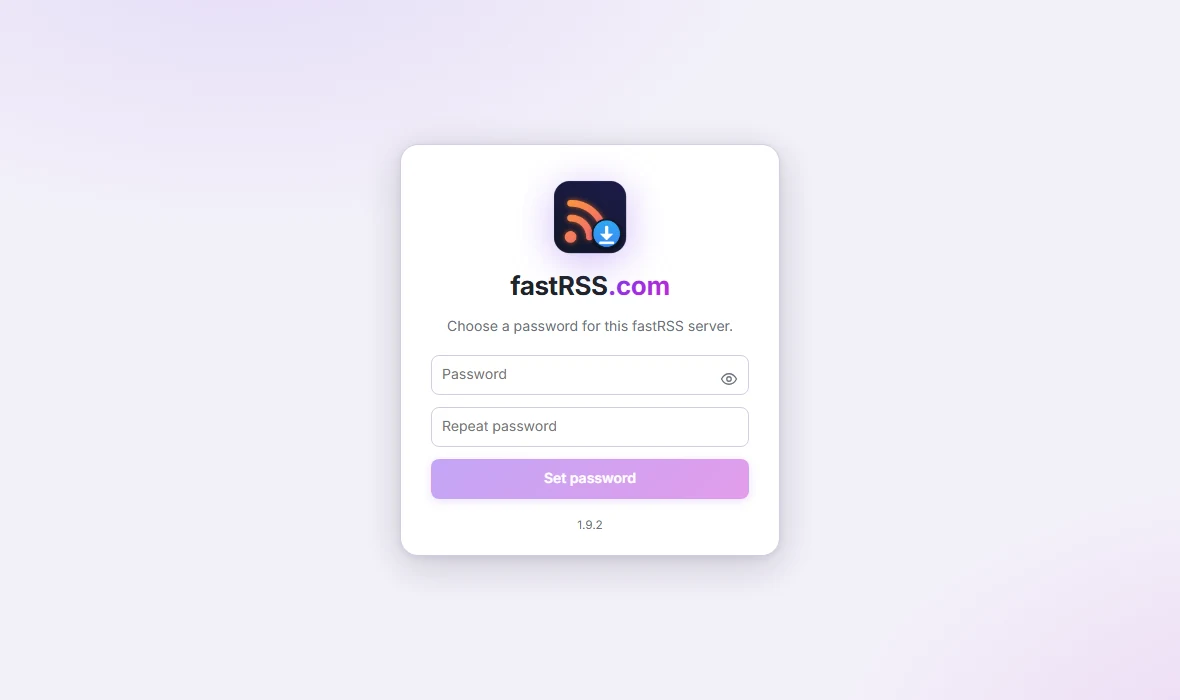
The server starts with the free 14-day trial. Afterwards, enter your license key under Settings → License.
Updating
New versions arrive as a new image. In Container Manager open Image: if an update is available for fastrss/fastrss, it is shown there - click Update. Or, in a terminal on the NAS:
cd /volume1/docker/fastrss
sudo docker compose pull
sudo docker compose up -d
Your feeds, settings and downloads are in the two folders and stay untouched.
Access from outside
The server speaks plain HTTP - fine in your own network. For access from the internet, put HTTPS in front: Control Panel → Login Portal → Advanced → Reverse Proxy. In the rule, add the WebSocket headers under Custom Header (Create → WebSocket) - the web interface gets its live updates that way.